If you’ve ever opened up WhatsApp, seen a message so integral that you tell yourself “I’ll come back to this later,” and then completely forgot about it — you are not alone. With dozens and dozens of chats buzzing through the day, weightier messages can get buried.
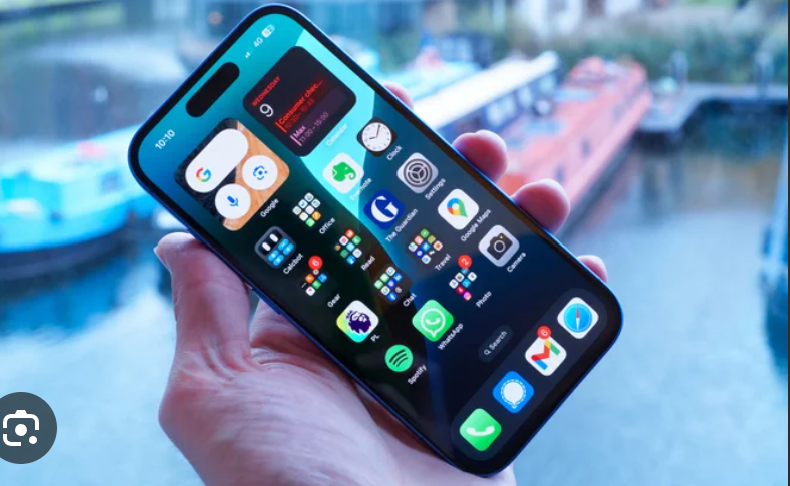
To solve this common issue, WhatsApp is introducing a new message reminder feature for iPhone users that would help you literally make sure you never forget important tasks, updates or commitments again. Without needing to switch apps or try to remember, you can just set a reminder right from the chat.
This feature is currently available on WhatsApp version 25.25.74, and while it’s a simple one, it could be one you use every day if you’re juggling multiple chats or trying to manage chats around your busy schedule. Be it a bill payment, a scheduled meeting, grocery place order or an important link — WhatsApp will now remind you at the exact time.
How to Set a Message Reminder on WhatsApp partiesandcelebrations (iPhone)
To make any message into a timed alert, do the following:
Step 1: Tap to open the chat and then scroll to the message you don’t want to forget.
Step 2: Long tap on the message till the options menu opens.
Step 3: Flick More… to reveal extra options.
Step 4: Tap on Remind Me (from the options listed).
Step 5: Select when you want WhatsApp to notify you —
2 hours
8 hours
24 hours
Tailored (select date and time)
Step 6: A tiny bell icon will show up on message bubble. This indicates the reminder is on.
Step 7: With the time is up, WhatsApp will notify you. Depending on what settings you have chosen, it could show the message content, chat title or even the media attached to the message.
How to Cancel a Reminder on WhatsApp
Should your plans change, or if you no longer need the reminder, canceling it is just as simple:
Step 1: Long tap the bell icon message.
Step 2:Tap More… in the pop-up menu.
Step 3: Select Cancel Reminder.
Step 4: Confirm your selection—the bell icon will vanish and the reminder is gone.
WhatsApp’s new message reminder feature isn’t huge, but it is a nice little upgrade. It introduces more control, more clarity and fewer forgotten tasks. For iPhone users, that’s another step in the direction of making WhatsApp more like a full-fledged communication and productivity application — all within the app you already use on a daily basis.

I craft sharp movie reviews and trend analysis, known for deep research, clear insights, and compelling storytelling across the latest in film and pop culture.