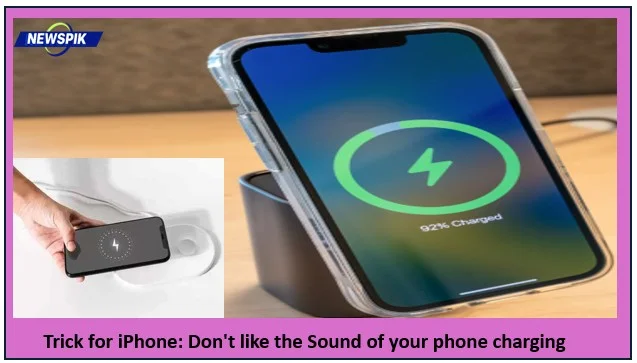

Apple doesn’t let users change the Sound of the charging port directly, but the Shortcuts app lets you set up an automatic process. When you plug in or unplug your iPhone, this will let you play your favourite music, a short audio clip, or a unique text that Siri will read. All new iPhones and iPads can use this trick.
Best of all, you don’t have to get any apps to play this cool game. You only need the Shortcuts app from Apple. Every iPhone comes with this app already on it, but if you delete it, you can get it back for free from the App Store. Then, you can use this app to change the boring Sound of your phone charging to your favourite music or Siri’s voice.
In what way do I set up the automation?
Start by opening the Shortcuts app. Then go to the bottom of the screen and click on the Automation tab. Then, choose New Automation. There will be a list of choices, but scroll down and tap on Charger. Then it will ask you when you’d like to hear this Sound. You can choose when the charger is not connected to the phone (Is Disconnected) or when it is connected to the charger (Is Connected). It’s important to choose “Run Immediately” so that the phone doesn’t send a message asking for permission before playing the Sound. Instead, it plays right away. After that, press Next.
Say your favourite message to Siri
Type “Speak Text” into the search bar in New Blank Automation to make Siri talk when you plug your phone in to charge it. Add it to the list of things to do. You can put anything you want in the text box, like “Welcome Master” or a simple thought like “I choose to be happy.” After that, you can tap the blue button to change Siri’s pitch, speech speed, and country (for example, English India). After setting up everything, don’t forget to tap “Done” at the top.
To set your favourite song, do these things:
If you like music, you can use any song from Apple Music as your charging sound. In the search bar, type “Play Music,” then pick out the song you want to listen to from your library. Don’t forget to tap the small button next to the song name and turn off shuffle and repeat after you’ve chosen. This will make sure that the chosen song plays as soon as the charger is hooked up. Last, press the “Done” button at the top.
For a quick sound bite or a funny sound:
First, find the MP3 or WAV file in your Files app. If you want to set a short, funny sound or joke music (like a cartoon sound), you will need to do this. Press and hold it for a while, then tap the Copy button. After that, go back to the Shortcuts app and choose the Play Sound action while you’re making the routine. Tap the button next to Play Sound and pick Copy. After that, the process will be over.
A smart way to turn off the original Sound:
Apple doesn’t let you totally change the usual ding sound on its systems, so your unique Sound will always play right after the default sound. Before putting your iPhone into charge, press the side button to turn it on Silent mode. This way, you can only hear your set song or Siri’s voice. It is possible to turn off Apple’s default sound when you are in Silent mode. Only your custom routines will play.

A versatile writer mainly works on trending news, daily updates from politics, business, crime, current affairs and entertainment.